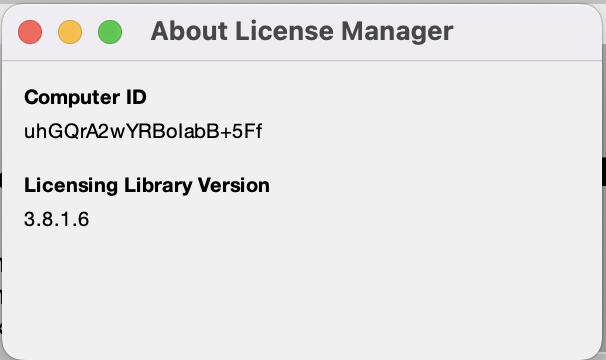

The computer ID can be used to keep track of which machine a license is activated on.
For versions 4.1 to 22.2, see classic.
Finding Computer ID using new License Manager (version 23.1+)
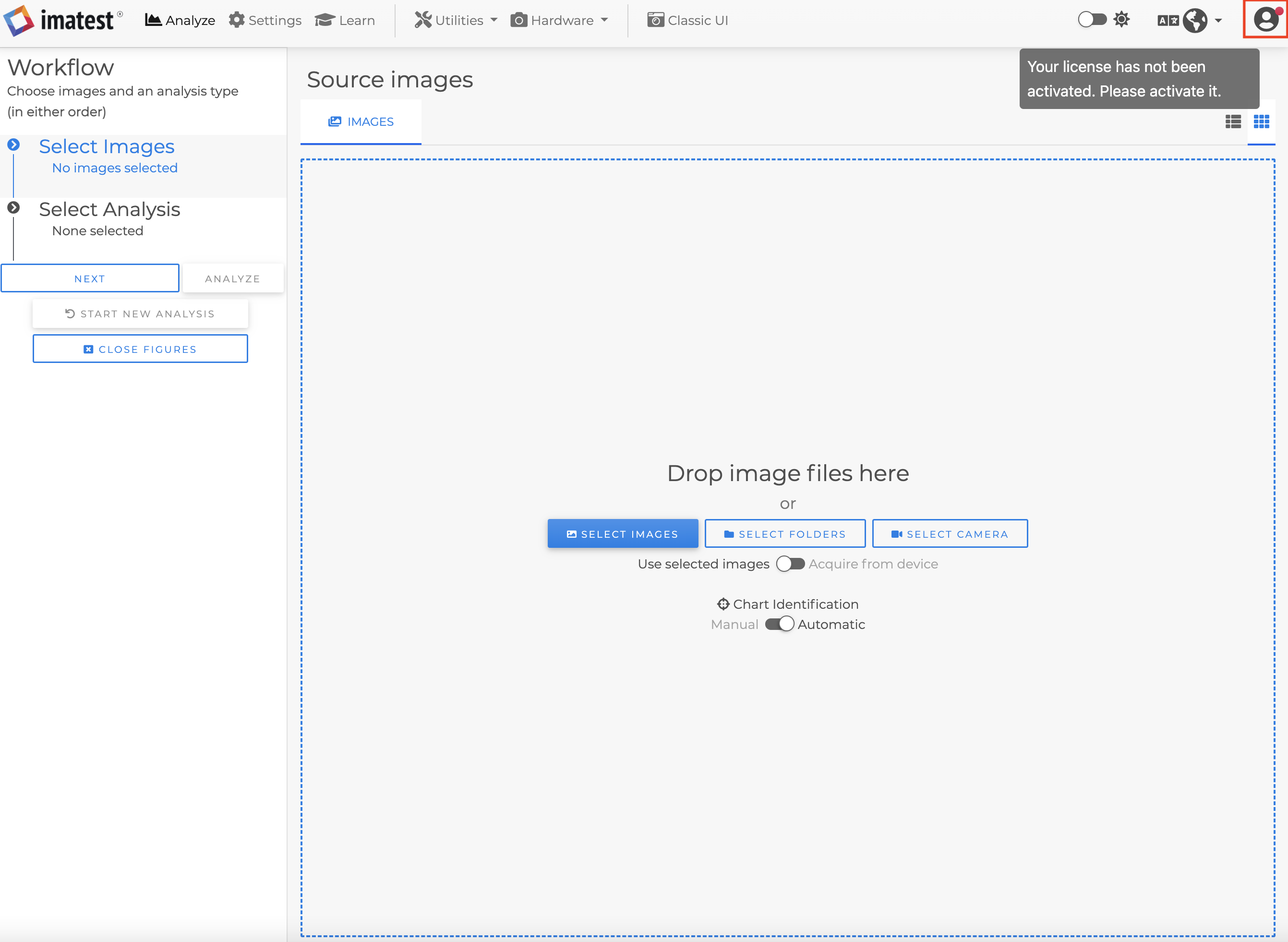
1. Start by opening the new license manager by clicking the avatar in Imatest Master as shown above.
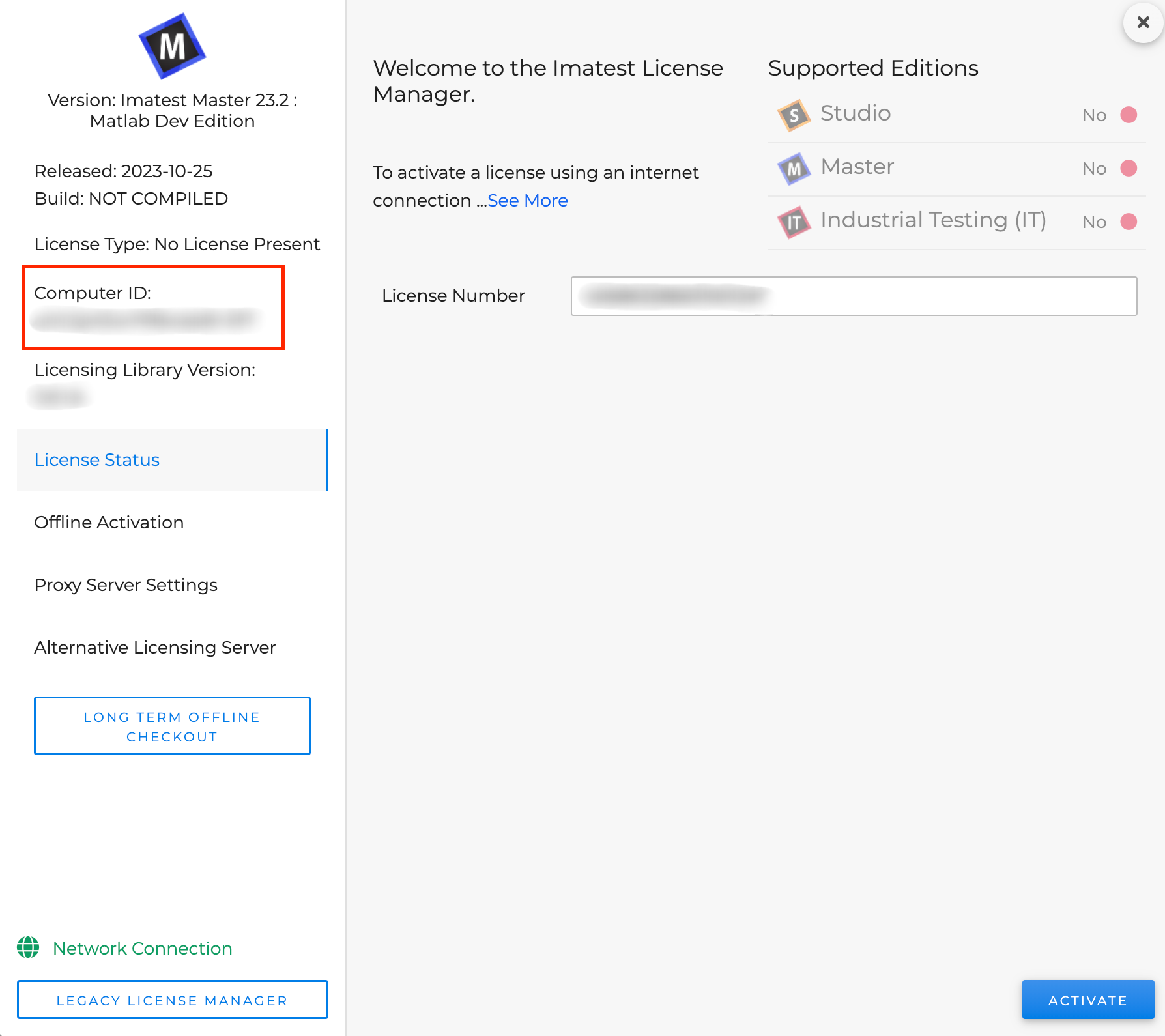
2. The Computer ID can be found on the left side of the new license manager.
Finding Computer ID using classic License Manager
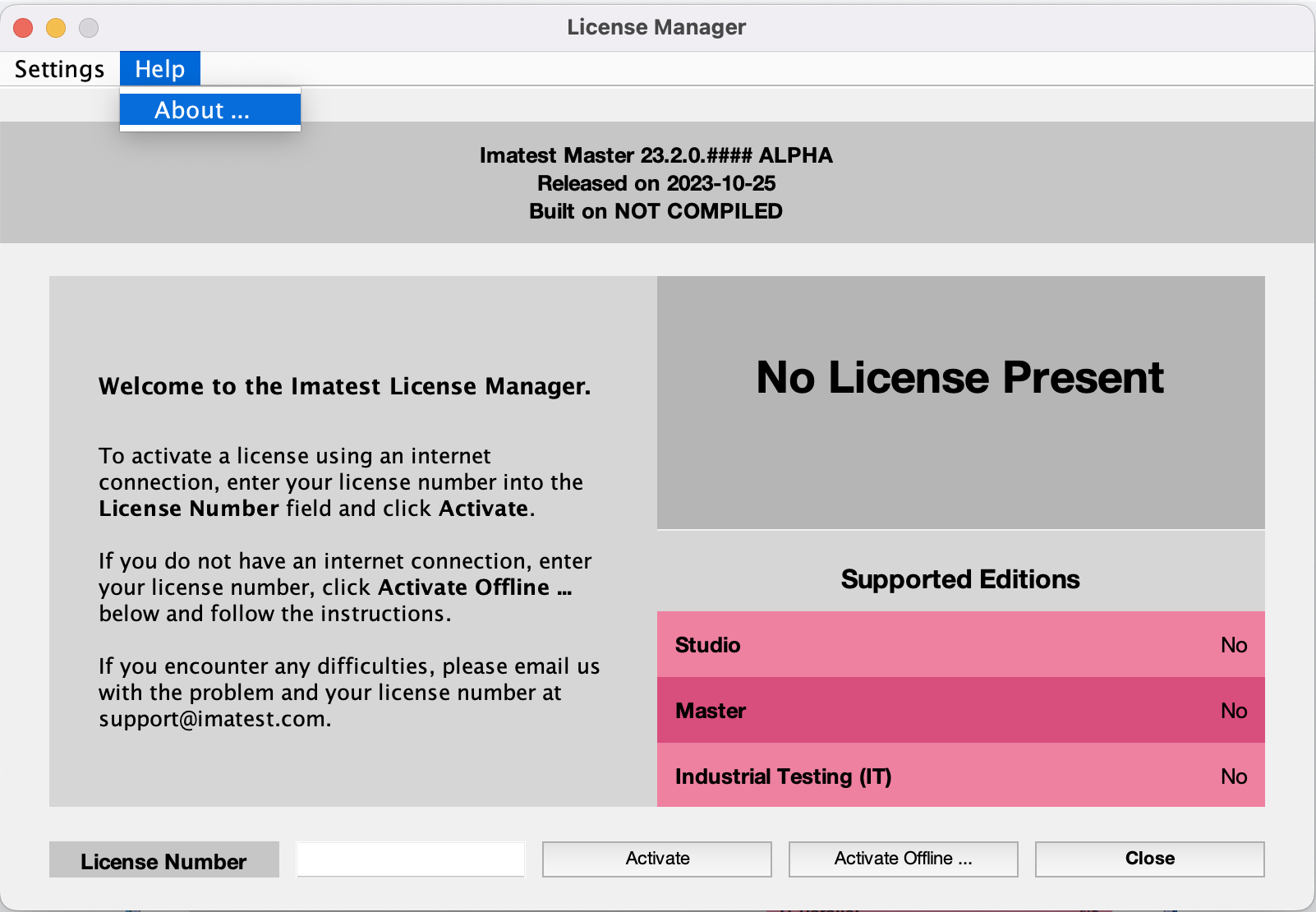
1. Start the Imatest License Manager and click About.
2. After clicking on About, the Computer ID will be visible.