

Imatest may be installed on several computers, but an Imatest license can only be activated on one computer at a time. To move Imatest from one computer to another you first need to deactivate it. These instructions apply to computers that are offline— not connected to the internet or are behind strong firewalls that prevent Online Deactivation. If your computer is online, you can follow the simpler procedure in Online Deactivation. After you’ve deactivated, you’ll need to perform Online Activation or Offline Activation on the new computer. Start by opening the Imatest License Manager from the Imatest program group or by clicking Help, License Manager (Activate) from Imatest Master (or other GUI-based version). 1. Click Manual de-activation
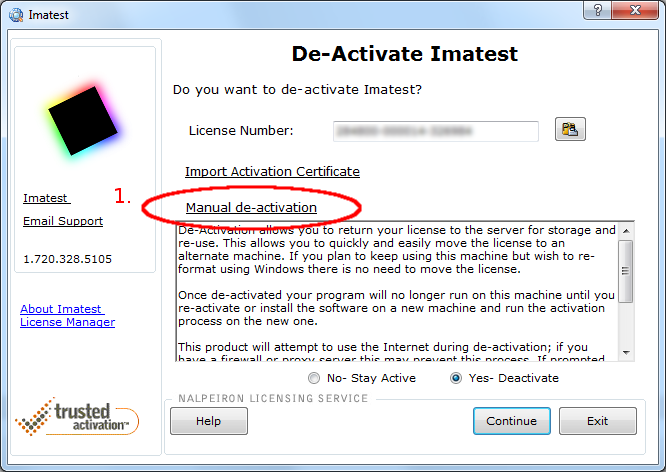
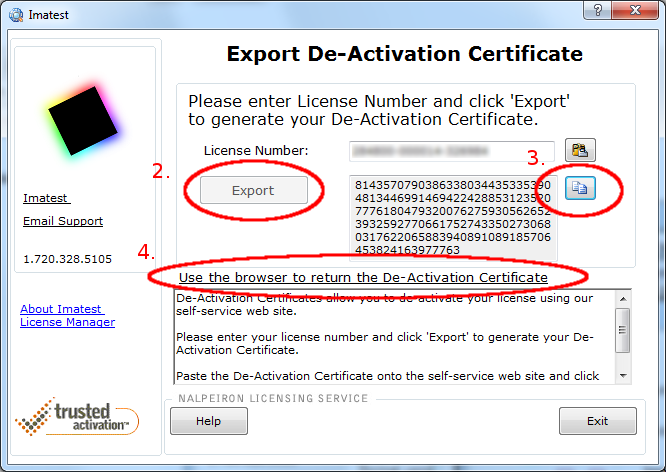
2. Click , then answer “Yes” when it asks if you are sure. The license is deactivated at this point but the certificate must still be returned to the server. 3. Copy the De-Activation certificate, which you can paste into the website below or into a text file if you are using a different connected machine to complete the deactivation. 4. Click Use the browser to return the De-Activation Certificate which opens https://www.internetactivation.com/ECOSYSTEM/ActivationServer/tiactivate/deactivate.aspx.
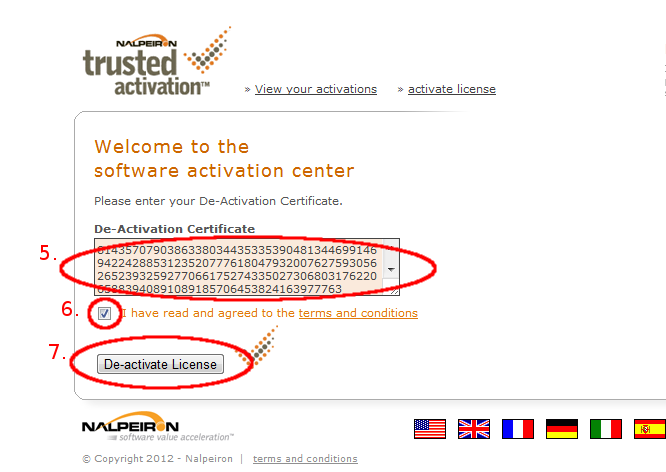
5. Paste the deactivation certificate that you copied above (or copy and paste from the text file you saved it to). 6. Check “I have read and agreed to the terms and conditions”. 7. Click .
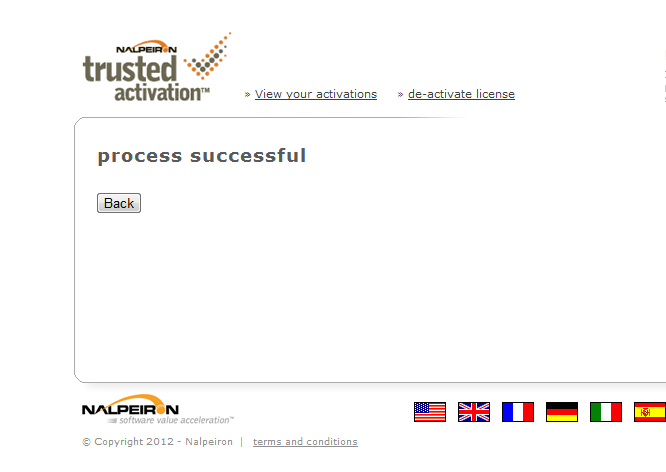
8. Success – This license is now deactivated and free to use on another machine.
See Also:
Online Deactivation | Command Line Deactivation Online Activation | Offline Activation