

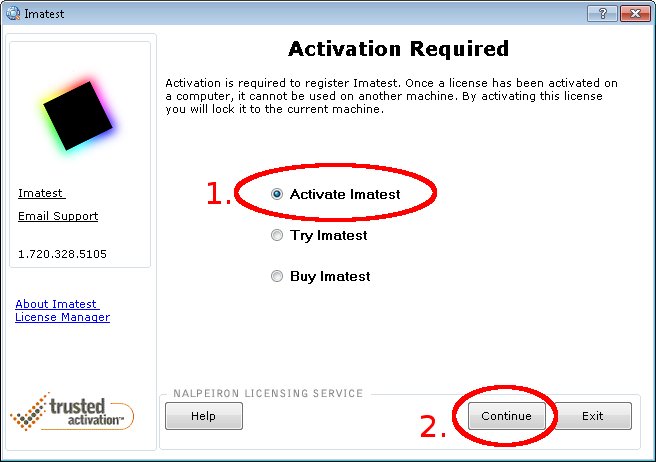
Imatest may be installed on several computers, but an Imatest license can only be activated on one computer at a time. To run Imatest, you must activate your license. This page shows how to activate Imatest software on a computer that is offline— disconnected from the internet or behind a strong firewall that prevents Online Activation. If it’s online you can follow the simpler procedure in Online Activation. If you are moving an activation from one computer to another, you’ll need to perform Online Deactivation or Offline Deactivation first. Start by opening the Imatest License Manager from the Imatest program group or by clicking Help, License Manager (Activate) from Imatest Master (or other GUI-based version).1. Choose Activate Imatest.2. Click on .
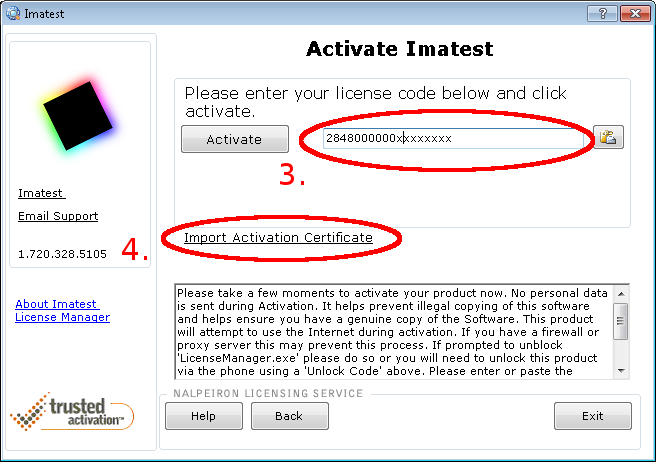
3. Enter the license number you received in your e-mail after purchasing the product (or this will be saved if you have it written to a file License.txt in the same folder as the license manager). 4. Select Import Activation Certificate.
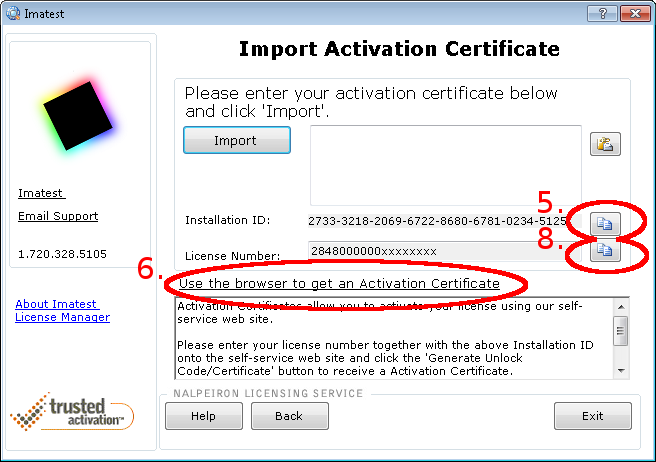
5. Copy the Installation ID – You can save this to a text file if you want to activate from another machine. 6. Click Use the browser to get an activation code, which will open the Nalpeiron trusted activation web site https://www.internetactivation.com/ECOSYSTEM/ActivationServer/tiactivate/default.aspx.
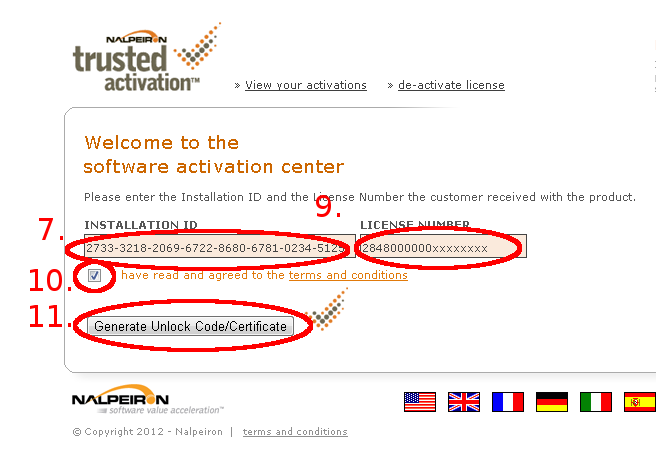
7. Paste the Installation ID that you got from the License Manager.
8. Copy the License Number from the license manager (above).
9. Paste your License Number in the nalpeiron activation web site (below).
10. Check “I have read and agreed to the terms and conditions“.
11. Click .
12. Copy the unlock code.
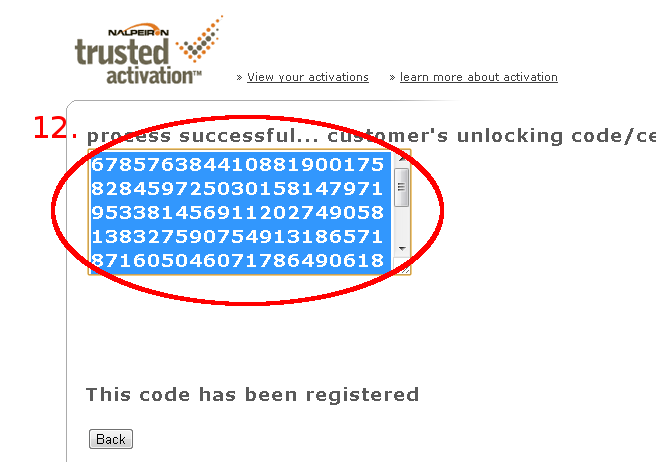
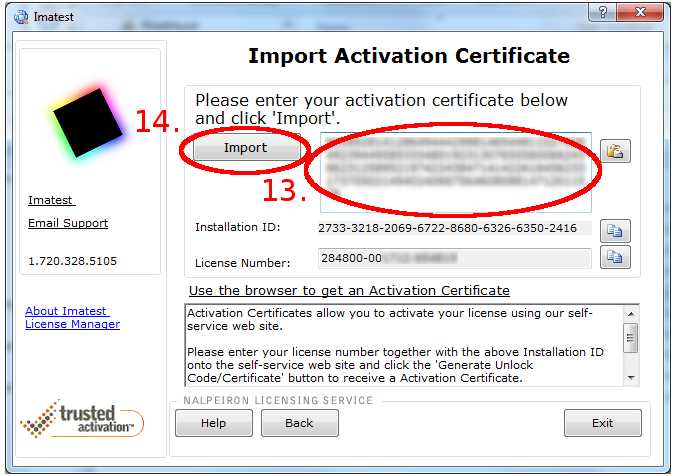
13. Paste the unlock code (you can save this to a text file if you need to activate on another machine).
14. Click .
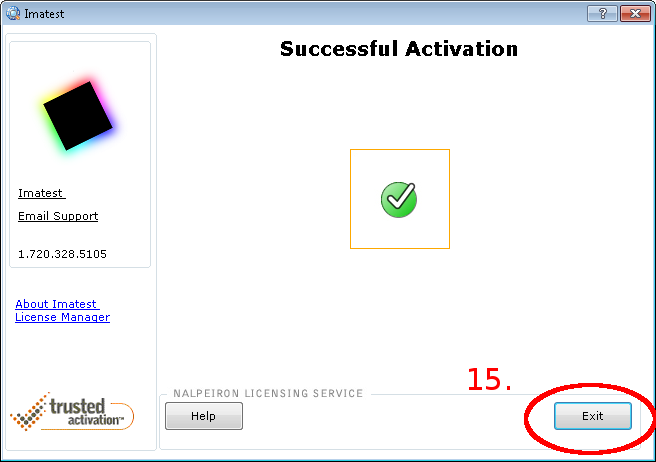
15. You have completed activation. Click Exit.
See Also:
Online Activation | Online Deactivation | Offline Deactivation