

Introduction – INI File Structure – INI File Utilities – Running from a Custom INI file
Import/Merge INI files
Introduction to Imatest saved settings (INI files)
Imatest saves settings for several purposes— to locate recently-accessed files, to store calculation parameters, to specify what regions of interest (ROIs) are used, to control how results are displayed, and much more.
Saved settings are also used
- to control Imatest IT (Industrial Testing) modules
- for the merge files used by the Imatest Functional Interface to ensure that runs are made with consistent settings.
Imatest settings are stored in INI files, which conform to an informal (but widely-used) standard. In normal operation settings are updated whenever an Imatest module is run. But there are cases where it is important to use consistent settings (unaffected by recent runs), for example, when a technician opens Imatest to perform a set task. This page describes how to save and load settings and how to create an Imatest icon that always opens Imatest with the same settings.
Occasionally the saved settings (lines in imatest-v2.ini and the other ini files) become corrupted, and an Imatest module or even Imatest itself may not run. In such cases it may be necessary to remove a line or an entire section— or even reset the imatest-v2.ini file (rarely the best solution because it loses all saved settings). Error handling procedures are described in the Troubleshooting page and in two helpful buttons in the Imatest main window.
opens a window that explains the key functions for viewing and editing Imatest settings. It also displays the full path for imatest-v2.ini (the default settings file) and shows how to fix bugs that can arise when imatest-v2.ini is corrupted. Function buttons include Save settings…, Load settings…, View/Edit settings, Copy settings, Import/Merge settings, Select ini file, INI File Editor, Scan & repair INI file, Functional interface, and Reset Defaults (all).
opens a window that shows what to do if you encounter an error. It includes link to the Change Log and Troubleshooting pages, buttons for Copying the current or last session to the clipboard for pasting into emails, and instructions on fixing imatest-v2.ini when it gets corrupted.
INI files: imatest-v2.ini and others
The default file for storing Imatest Master settings is
- imatest-v2.ini (for most Imatest modules)
INI files are updated during Imatest runs when settings are changed in input dialog boxes (Settings windows), in the Settings and INI file settings menus of the Imatest main window, or when the INI file is edited (see below).
The standard imatest-v2.ini is stored in a default folder location created at installation time.
INI File Structure
INI FILES are text files structured so that
Value may be a number, an array of numbers, or a character string (which can be blank). INI files are readable, but the meaning is not always obvious. See the Imatest INI Reference for more details. |
[section] |
|
|
EXAMPLE dispwelcome = 1 means display the Welcome screen when Imatest is started. |
[imatest] dispwelcome = 1 evalvl = 1 exiftool = 2 expandplt = Min fontsize = 10 readexif = 1 shrink_largef = 1 acquire = 0 edfile = C:Program Files (x86)\\IrfanViewi_view32.exe [sfr] filecomb = 0 folder = C:Imatest\\Data\\SFR save_dir = C:Imatest\\Data\\SFR\\Results … |
|
INI file utilities
 ini file utilities
INI file utilities can be accessed from the INI File Settings dropdown menu in the Imatest main window or by pressing the button. Rescharts and Multicharts have similar dropdown menus for their respective ini files.
Manage Settings (in the Help or Data tab on the right of the Imatest main window) opens the Manage Settings window, which contains brief descriptions of the utilities as well as direct links to them.
Save settings… saves imatest-v2.ini in a named file. This is especially useful for cases where you will need to return to the current settings in the future.
Load settings… loads the contents of a named ini file into imatest-v2.ini.
Copy settings copies the contents of the ini file into the clipboard, from which can be pasted (control-C) into emails for error reports.
View/Edit settings opens the ini file in a text editor (usually Notepad). Settings can be searched, edited, and saved. Notepad is NOT recommended for editing ini files because they are now in UTF-8 format (for better handling of non-Latin characters, i.e., better internationalization), which is not handled well by Notepad.
INI File editor (formerly Edit/reset module(s) ) opens the INI file editorINI file editor shown below. It offers a number of conveniences compared to Notepad, like easily locating sections and editing lines within sections. It is particularly valuable for repairing modules that have stopped working (by removing their sections). We often use it for our development work.
Select INI file changes the file used to control Imatest from imatest-v2.ini to a custom file, described below.
Import/Merge INI file merges a file into imatest-v2.ini, overwriting lines in imatest-v2.ini contained in the merge file, but not affecting other lines. This feature can make it easy to set up custom tests and quickly switching between test types (for example, selecting different regions in slanted-edg modules or Pass/Fail files). Because this feature has been neglected, even though it’s been a part of Imatest for a long time, we have added a section below.
INI File Monitor runs in the background when turned on. It lets you examine the contents of the most recent INI file run while the monitor is open. Details are given in Imatest INI File Reference — INI File Monitor.
Reset defaults (all) deletes and recreates imatest-v2.ini. All saved settings are lost. This is the last resort in the case of errors: it’s usually better to delete the contents of the section corresponding to a module that won’t run, using the editor described below.
INI File editor
The INI File Editor (formerly Edit/Reset Modules) is used to repair Imatest modules that have stopped working and for creating and editing INI files for controlling Imatest IT (Industrial Testing). It can be opened from the INI File Settings dropdown or from .
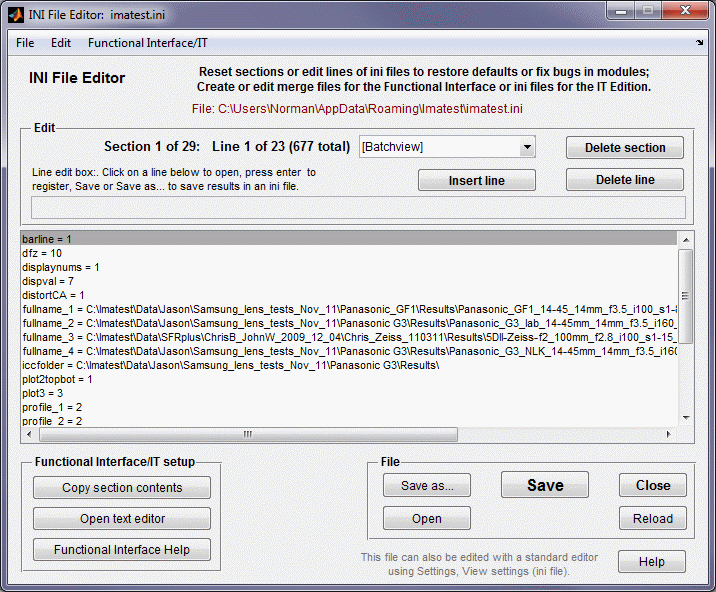 INI File Editor
Repairing broken Imatest modules— Open the INI File Editor andselect the section corresponding to the broken module (in the dropdown window that contains [Batchview] in the above image. Unless you can identify a bad line (unlikely, but not impossible using the Imatest INI Reference), click , If you with to cancel your changes, press either or . When you are finished editing, press then .
Creating and editing INI files for Imatest IT— There are two approaches to creating a custom INI file. It’s a matter of personal preference.
- Additive: Create a new file in a text editor. We don’t recommend Notepad (Windows’ feeble default editor) because it has poor support for the UTF-8 encoding. Select sections you want to copy, then press and paste into the new file.
- Subtractive: Click to save the INI file in a (new) named file, then remove unneeded sections using . You can always insert or delete lines with a section.
To edit a line, select it in the large window, make the change in the edit window just above the large window, then press Enter. When you are ready to save the changes press the button, which is grayed out until changes are made.
Running Imatest from a custom ini file
Imatest IT (Industrial Testing) modules are controlled by INI files. It is often useful to test these INI files in Imatest Master (or IS, etc.). You can substitute a custom INI file for imatest-v2.ini. To do so, press Select INI file in the INI File Settings dropdown menu.
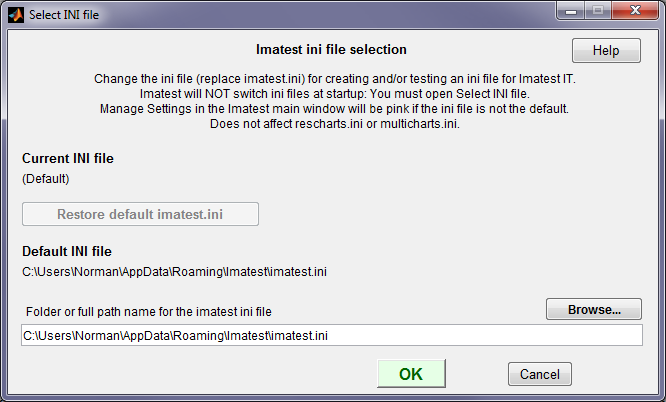
The INI file selection window, for selecting an alternate ini file for running Imatest
- Imatest always starts in the default imatest-v2.ini. To change to another INI file you must open the INI File Selection window (from the INI File Settings dropdown menu or from ).
- Since running Imatest can change the contents of the INI file, we recommend working from a copy of a file used in Imatest IT (not the file you intend to keep).
- Only the main Imatest control file (normally imatest-v2.ini) is affected.
Import/Merge INI files
This feature lets you switch between different test settings with minimal effort by importing an ini file (that typically contains a small number of lines that affect a specific test) into imatest-v2.ini. This is called the “merge file”.
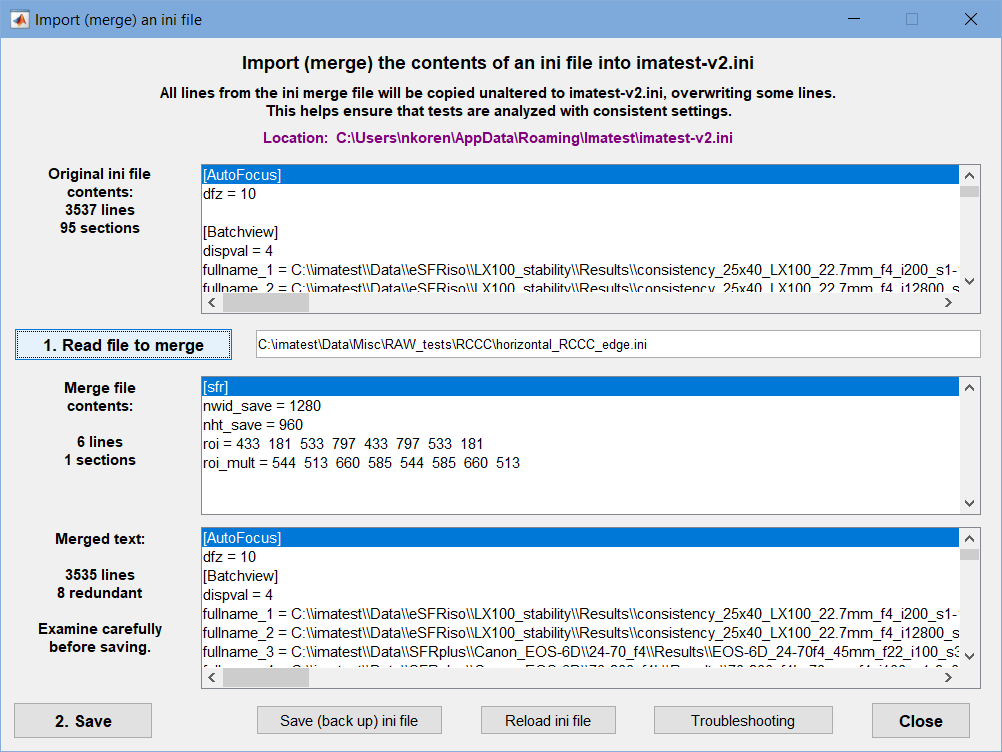 Import/merge window
Import/Merge merges the contents of the merge file into the current active ini file, imatest-v2.ini, which is displayed in the upper box (Original ini file) when the Input/Merge window is open.
- Press 1. Read file to merge. The contents of the merge file is displayed in the middle box and the contents of the merged (combined) file is displayed in the lower box. You can check this box to see if the results are what you expect. (You don’t need to do this once you’re confident the process works correctly). This enables the 2. Save button. If you are confident of the results,
- Press 2. Save. (Note that earlier buttons had an additional 2. Merge button, which has been removed.)
If you’re not confident that the merge will work as expected, you might want to press Save (back up) ini file prior to doing the merge— for safety and to ensure that you can get your old settings back.
Using custom icons and shortcuts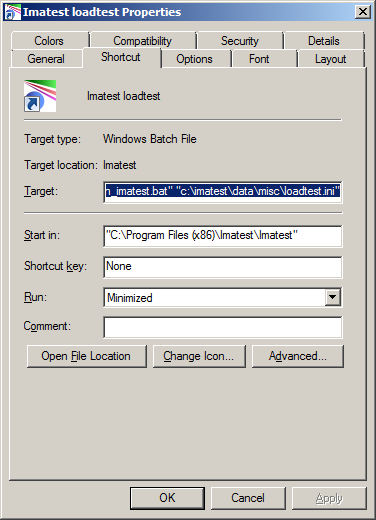 Note: This section has been deemphasized because it is rarely used. Starting with Imatest 3.9, consistent settings can be obtained more conveniently with the Imatest Functional Interface (also infrequently used). Custom icons and shortcuts can be valuable where Imatest must be run using consistent (saved) settings— often by technicians or personnel with limited training in Imatest operations or on computers where several operators test different systems. Since imatest-v2.ini is updated whenever Imatest is run, you can never be sure what the settings are at the start of a new run unless you take the proper steps. This technique imports data from saved ini files, overwriting only those variables that are included in the ini file, which should be edited to remove all variables that don’t need to be set. For example, folder names, which are ever-changing, probably should be removed from the ini file. To set up a custom icon,
Locking settings (Not yet fully implemented)There may be situations where it is desirable to lock settings— to disable the user’s ability to change settings that may affect results when running with custom icons or shortcuts. (You’d rarely want to do this with normal Imatest runs). The procedure for doing so is not airtight— but it’s good enough to prevent accidental changes in settings.
To lock settings, place the following line in the [imatest] section of the saved ini file. (You’ll need to do this using a text deitor: there is no direct Imatest command that does this.)
Removing this line or setting fix_settings = 0 restores normal operation. When Imatest starts using an ini file with this setting, a number of settings will be disabled. For normal operation, Imatest will need to be restarted using an ini file where fix_settings is omitted or set to 0. |