

Interactive measurement of vignetting and sensor nonuniformity
Uniformity-Interactive measures image nonuniformity, which can be caused by the lens, the sensor, and the lighting— the same parameters measured by Uniformity— in an interactive interface that can be updated in near-realtime. It can also photo response nonuniformity (PRNU) derived from the EMVA 1288 standard, ISO 18844 flare (veiling glare), and more.
Uniformity-Interactive can display pixel and color shading contour plots, pixel level histograms, hot and dead pixels, grid and grid contour plots, and much more. The table below contains a complete list of displays. Many of the features are also described in Using Uniformity and Using Uniformity Part 2.
|
News: Imatest 2020.2: Nonuniformity measurements (PRNU and DSNU) based on the EMVA 1288 machine vision standard are now supported. |
Image preparation | Running | Controls | Settings window | Results
Luminance contour plot | f-stop contour plot | Grid contour map | CSV & JSON output | Saving results
Instructions
Image preparation
- If possible, set your camera or lens to manual focus and focus it at infinity (for minimum light falloff).
-
Photograph an evenly illuminated uniform (“flat field”) subject.
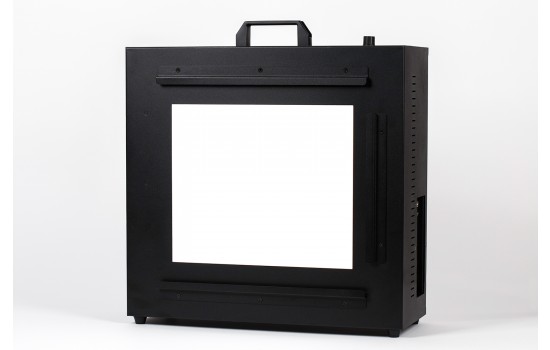 To obtain even illumination We recommend an Imatest LED LIghtbox or Light Panel. The Lightbox features excellent illumination uniformity (97%), dimming over a range of 300:1, selectable color temperature (typically 3100 and 5100K), and can be used with Imatest Dynamic Range and other transmissive charts. Lightboxes are compared here. The most even illumination can be obtained with an integrating sphere (not sold by Imatest), but the Imatest lightbox and panel should be more than sufficient for most applications because they are typically very close to camera. |
|
|
- The subject does not need to be in focus (you don’t even need a lens to measure sensor uniformity); the goal is to measure lens light falloff and/or sensor uniformity, not features of the subject. For typical measurements, set exposure compensation to overexpose by about one f-stop. (You may, however, use any exposure you choose.)
- Save the image as a RAW file or maximum quality JPEG.
Running Uniformity-Interactive
Using the New Main Window:
Select your Image, then click Next to Select Analysis options.
In Analysis Options screen – open the “Uniformity” Category, and select Uniformity.
Click Analyze – the ROI option screen will appear, (choose ROI and click yes), then the Uniformity Interactive results screen will be displayed.
Use the More Settings button to change Settings (settings are described in detail below). Use the dropdown menu on bottom left of the results screen, to choose a different output display.
Results can be saved using the Save screen or Save Data buttons. When done, click Exit to return to Main Window.
In the Imatest Classic UI:
Start Imatest , and choose Classic UI from the Main Menu. When the Classic interface appears, click on . This opens a dialog box that asks for input image file(s).
Very large files (height x width x colors over 40 MB) sometimes caused memory overflow problems on older 32-bit systems. Files over 40 or 80 MB can be automatically reduced 1/2x linearly (using 1/4 the memory) if you click Settings, (in the Imatest main window) and make the appropriate setting in LARGE FILES (Uniformity, Blemish…).
| 1. Use “Enable Crop pixels near border” in Settings box (Don’t ask to crop.) |
| 2. Select crop (ROI) by dragging cursor. Ask to repeat crop for same sized image [default]. |
| 3. Select crop by dragging cursor. Do not ask to repeat crop. |
| 4. Automatically select crop for image surrounded by a dark boundary. |
After the input file has been read, the Uniformity-Interactive window, showing the most recently displayed results, is displayed.
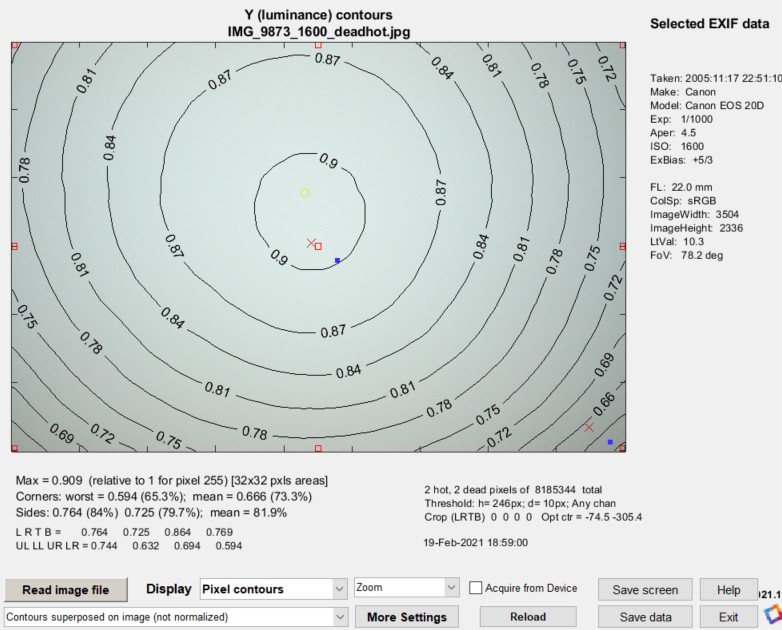 Uniformity-Interactive main window, showing pixel contours
(identical to the first figure of Uniformity)
Results are displayed using the previous settings (saved in imatest-v2.ini), in this case the pixel contour plot with unnormalized contours superposed on the image.
Uniformity controls
- reads an image, then performs calculations and displays results.
- Display dropdown menu selects the results to display. Selections are shown in the Table, below.
- Primary display settings (below Display) lets you select the most important settings for the selected display, for example how to normalize the results, whether to display a pseudocolor plot, etc. Additional settings are available by pressing , immediately to the right.
- opens the Uniformity dialog box, shown below. This contains advanced settings not shown in the Primary display settings dropdown menu.
-
Zoom/Rotate 3D/Data Cursor
selects the action when you click on the image. Zoom zooms in on the image. It zooms out when you shift-click or double-click. Rotate 3D is used to rotate 3D images (2D images are zoomed). Data Cursor opens a tiny window called a Datatip that displays values of the image or curve. Right-click on the Datatip to remove it or access additional options. - checkbox may be removed because Settings, Device manager is better for setting up direct acquisition.
- reloads the image. Most valuable for Image Acquisition, which allows images to be read directly from devices like USB cameras or manufacturer’s evaluation boards.
- Saves and optionally displays the Uniformity window.
- Saves results in CSV and/or XML files. Opens the Save dialog box.
- opens this web page. (Others are available in the Help dropdown window on the top toolbar.)
- exits the Uniformity window.
Uniformity-Interactive settings window
The settings window opens when you answer Yes (not Express mode) when reading an image or when you press the button. It is similar to the Uniformity settings window, but some display selections are missing because they’re made in the Uniformity-Interactive Display dropdown menu.
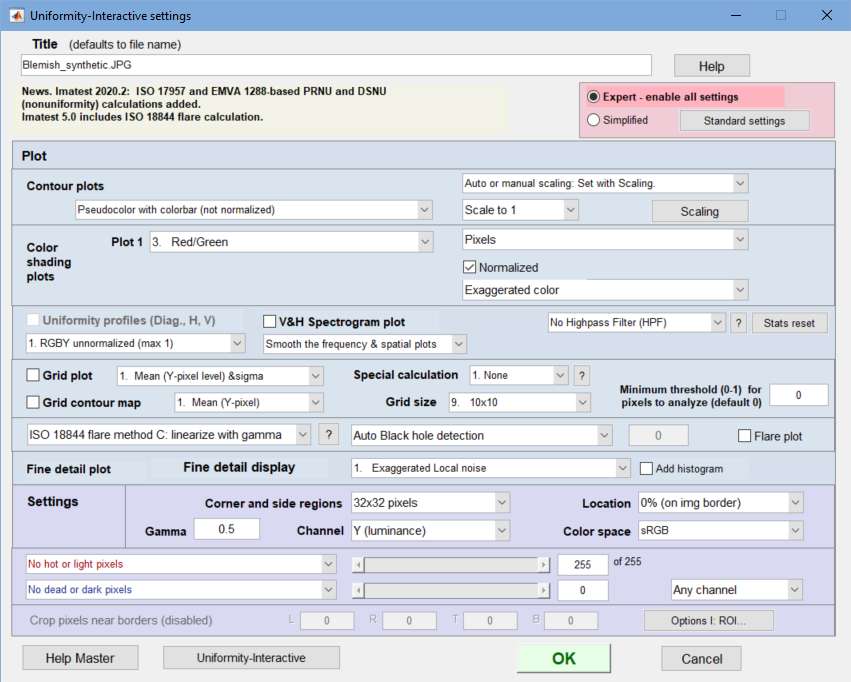 Uniformity Interactive settings dialog box for Imatest Master
- Title Defaults to the file name. You can change it if you wish.
- Expert/Simplified modes Simplified mode grays out advanced selections that may not be needed by beginners.
- selects commonly-used settings: good choices for beginners.
Plot area
Most of the settings in this area apply to displays that are selected in the Uniformity-Interactive window. For this reason, Some display selections used in Uniformity are missing (or disabled). (And a few should probably be disabled.) Some of the settings listed below are duplicated in the Primary display settings dropdown menu of the Uniformity-Interactive window.
- Contour plot display options Eight display options are available. 3D plots are available. Normalized refers to the Pixel contour display only.
| Contours superposed on image (not normalized) |
| Contours superposed on image (normalized to 1) |
| Pseudocolor with colorbar (not normalized) |
| Pseudocolor with colorbar (normalized to 1) |
| 3D pseudocolor w/colorbar (not normalized) |
| 3D pseudocolor w/colorbar (normalized to 1) |
| 3D pseudocolor shaded w/colorbar (not normalized) |
| 3D pseudocolor shaded w/colorbar (normalized to 1) |
|
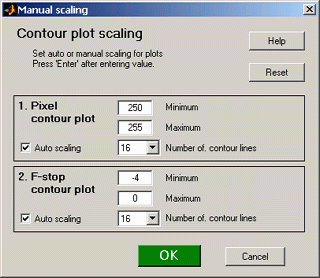 Manual scaling for contour plots |
- Color shading (Plot 1): Select Red/Blue, Red/Green, Green/Blue, or any of several variants of ΔE and ΔC (76 (i.e., plain), 94, and 2000).
- Display type: Exaggerated color, Pseudocolor, and 3D options.
- Pixels (gamma-encoded), Intensity (linear— using gamma), and f-stop difference.
- (Dropdown menu below Uniformity profiles) Choose between several different normalizations or R, G, B, and Y, R/G and B/G, or Delta-L*, a*, b*, and C*.
- (Dropdown menu below V&H Spectrogram plot) Select frequency & spatial plot smoothing.
- Highpass filter (HPF) dropdown: Turn on box HPF for EMVA 1288 calculations. Used for histograms.
- (Dropdown menu to right of Grid plot) Select parameters to display: mean & sigma, Delta-C & Delta-E, etc.
- (Dropdown menu to right of Grid contour map) Select a single parameter to display (value and contour). Settings listed below.
- Special calculation: None, CPIQ, or ISO 17957.
- Grid size for Grid plot and contour map. From single region to 32×18. 10×10 is typical.
Fine detail display Choose between exaggerated local noise with or without contour lines, pseudocolor contours, spot detection (which includes nonlinear processing), or several 3D plots.
Settings area
- Gamma Gamma is the average slope of the log pixel level vs. log exposure curve, taken from a specified maximum value through dark gray values. It only affects the f-stop contour plot and ISO 18844 flare measurements; it has no effect on the other measurements. The default value (0.5) is typical for digital cameras. Gamma is measured by Color/Tone Interactive or Auto using any one of several widely-available grayscale step charts, or by legacy modules Stepchart or Colorcheck. Some issues in calculating gamma are discussed next to f-stop contour plot.
- Corner and side regions (default 32x32 pixels) allows you to select the areas at the corners and sides of the images to be analyzed. These affect the numeric readouts below the plots (example: Corners: worst = …). Choices include 10x10 pixels, 32x32 pixels, 1% (min. 10x10), 2% (min. 10x10), 5%, and 10%.
- Crop pixels near borders (L, R, T, B) (Settings area). Available only if Don’t ask to crop. (Use Crop … borders settings in LF input dialog box.) is selected in the in the Imatest main window. If checked, the image is cropped by the number of pixels indicated near the left, right, top, and bottom borders.
- Color space affects Color shading ΔE and ΔC measurements in Color Shading, Grid, and Grid Contour plots.
The following options are not available in Imatest Studio. They are discussed in detail in Using Uniformity Part 2.
- Channel You can choose between Red, Blue, Green, and Y (luminance) channel
- Hot and dead pixels By checking the appropriate boxes you can display hot pixels (red ¤) and/or dead pixels (blue •). Hot pixels are stuck at or near the sensor’s maximum value (255 in 8-bit files) and dead pixels are stuck at or near 0. You can choose between hot/dhead pixel detection in any channel, all channels or the selected channel.
 Hot & dead pixel settings
Because signal processing— especially JPEG compression— can cause defect pixel levels to shift, you can use the sliders to set the detection threshold between 6-255 for hot pixels and 0-249 pixels for dead pixels. (The extreme values are for measurements made on white or black fields.) Clicking on or at the ends of the sliders adjusts the threshold by 1. The default values are 252 and 4, respectively. JPEG files must be saved at the highest quality level for this feature to work; isolated hot and dead pixels tend to be smudged at lower quality levels. Details are described in Using Uniformity Part 2.
Dropdown menus
There are four dropdown menus, located just below the top of the Uniformity Interactive window: File, Settings, INI File Settings, Help.
File contains several file-related functions
- Read image file
- Save image to file
- Save temporal noise image. Only applies when temporal noise is calculated — when signal averaging is applied and Calculate image^2 while averaging is checked
- Save pseudo-raw/remosaiced image — Save the image as an undemosiaced (Bayer raw image).
- Save screen — displays screen and optionally saves it (most of the time we don’t save the screen)
- Open image file folder
- Open recent save folder
- Preview JSON results
- View all EXIF data
- Image statistics/viewer
- Close
Settings
- Small, Normal, Large, X-Large fonts
- Reset screen — resets screen to original size and position (above the Imatest main window)
- Image from file
- Device manager — Opens the Device manager for selecting an image acquisition device, adjusting the settings, and previewing the image.
- Image from device > Lets you select a device for acquiring an image. Not recommended. Device manager is more reliable.
- Signal averaging > Lets you average up to 128 directly-acquired images for reducing noise and for separating temporal and spatial noise in EMVA-1288-based nonuniformity calculations and for calculating noise images.
- Calculate image^2 while averaging. Required for separating spatial and temporal noise
Results
Some results plots are described below on this page, but several are described on other pages, including Using Uniformity Part II, ISO 18844 Flare (Veiling glare), and Uniformity Statistics based on EMVA 1288 .
| Display (with link | Description |
| Original image | Original image, displayed uncropped. Several display settings are available: single channel, lighten, color boost, etc. |
| Luminance (pixel) contours | Standard luminance (Y) channel contour plot. Several types of display are available: 2D, 3D, image or pseudocolor background. |
| F-stop contours | f-stop contour plot, converted from pixel levels using gamma setting. |
| Color shading | 2D or 3D contour plot of pixel ratios or ΔC and ΔE (ab, 94, or 2000) |
| Uniformity (Color) profiles | H, V, and diagonal profiles. |
| Histograms | R, G, B histograms of the image crop |
| Noise Fine detail | Somewhat interesting display of noise detail, but largely replaced by Blemish Detect. |
| Grid plot | Displays results for image divided into an m×n grid. |
| ISO 18844 flare | Flare measurements for the ISO 18844 chart (small “black holes” in a large white field). |
| Grid contour map | |
| Accum. HIstograms | Accumulated histograms from EMVA 1288 standard |
| V&H Spectrum | Display EMVA 1288 Horizontal and vertical spectrograms and profiles |
| PRNU/DSNU & Histogram | Display EMVA 1288 measurements (PRNU is photo response nonuniformity) and histogram. |
| Temporal noise image | Temporal noise image. Requires that signal averaging be set to at least 32 images and Calculate image^2 while averaging be set. |
| Orig. image (cropped) | Original image, cropped the same as the temporal noise image for quick comparison |
Hot & Dead pixels – Can be displayed in Luminance (pixel) contour plots. Summarized in JSON and CSV output.
Optical center – Center of illumination, affected by lens and lighting. Based on a robust centroid calculation.
It’s one of three optical centers (the others are center of distortion and center of sharpness).
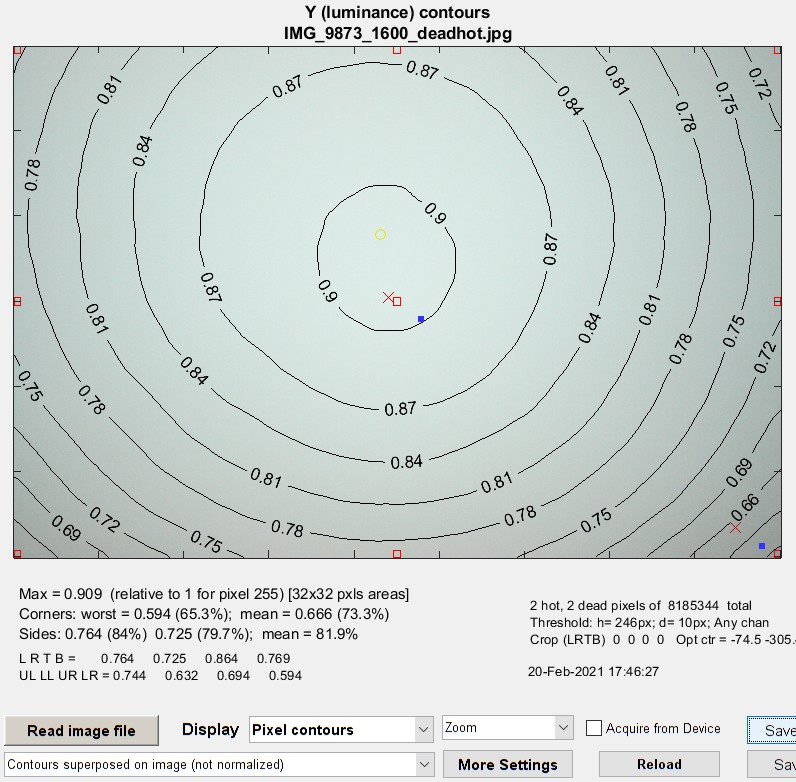
Luminance (pixel) contour plotshows normalized pixel level contours for the image file luminance channel, where luminance is defined as Y = 0.30*R + 0.59*G + 0.11*B. This light falloff is sometimes called “vignetting”. A maximum value of 1 corresponds to pixel level = 255 for image files with a bit depth of 8 or 65535 for a bit depth of 16. Some illumination nonuniformity is evident in the plot: the top is brighter than the bottom. The image is smoothed (lowpass filtered) before the contours are plotted. The text displays the maximum normalized pixel level for the luminance channel, the worst and mean corner values (in normalized pixel levels and as a percentage of maximum), and the side values. Selected EXIF data is shown on the right. Two hot (¤) and two dead (•) pixels (which were simulated) were detected with pixel level thresholds of 246 and 10 (of 255), respectively. Details below. Some image editors have a function that corrects vignetting (though it may be desirable to keep some vignetting for aesthetic reasons). |
|
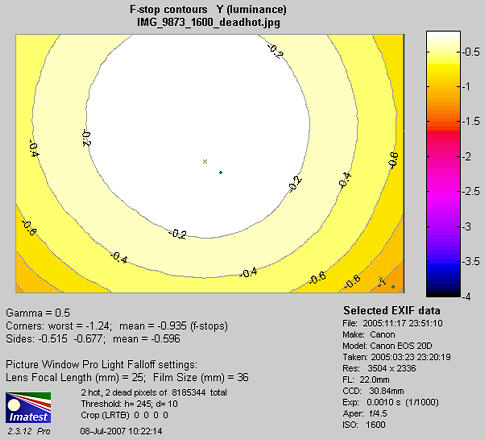
f-stop contour plotshows image file luminance contours, measured in f-stops, normalized to a maximum value of 0. A pseudocolor display with color bar has been selected. The colors in the color bar are fixed: colors always vary from white at 0 f-stops to black at -4 f-stops and darker. For this plot to be accurate, a good estimate of gamma (the camera’s intrinsic contrast) is required. Gamma is measured by Color/Tone Interactive or Auto using any one of several widely-available grayscale step charts, or by legacy modules Stepchart or Colorcheck.
|
F-stop contour plot in pseudocolor (normalized) |
|
It’s important to measure gamma because very few cameras use the exact gamma specified by the color space. It can’t be tricky to measure for several reasons. (1) (2) Many cameras have complex response curves, for example, “S”-curves superposed atop gamma curves. This means that gamma can vary with brightness. (3) Some cameras employ adaptive signal processing (local tone mapping) in their RAW conversion algorithms. This can increase local contrast, but decrease overall (large area) contrast. This can improve perceptual image quality for a wide range of scenes, but makes measurements difficult, especially since Light Falloff targets have the lowest possible contrast. Both contour plots are available as 3D plots (Master-only). The 3D plot on the right is unnormalized and shaded. |
|
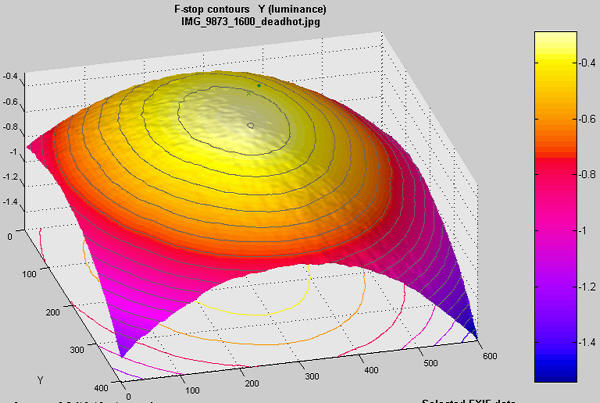 3D shaded pseudocolor F-stop contour plot (unnormalized)
The f-stop falloff in the second plot is derived from the equations,
Pixel level = k1 luminanceγ ; Luminance = k2 pixel level1/γ and
F-stop loss = log2(luminance ratio) = 3.322 log10(luminance ratio)
where luminance ratio is the ratio of the maximum luminance to the luminance in the area of interest, for example, the mean value of the corners.
Example: The first and second figures, above, are derived from the same image file. In the first figure, the mean pixel level at the corners relative to the center is 0.666/0.905 = 0.736 (73.6%). Since γ is assumed to be 0.5 (fairly typical of encoding gamma of digital cameras, the exposure at the corners relative to the center is 0.7361/γ = 0 .7362 = 0.5416. The corresponding f-stop loss = log2(0.5416) = 3.322 log10(0.5416) = -0.885 f-stops. There is a slight discrepancy with the second figure, which calculates the mean at the corners (0.894 f-stops) after taking the logarithm to convert results into f-stops.
Grid contour map
The grid contour map, introduced in Imatest 2020.2, is particularly good for visualizing results. It works very well in Uniformity Interactive because you can quickly scan through different results. Unlike the grid plot, which displays two or three values in the grid (and is difficult to read), it displays only one value. But this isn’t much of a drawback because it’s easy to scroll through the results.
| Display 1. Mean (Y-pixel) 2. Sigma (Y-pixel) 3. S/N (Y-pixel) 4. SNR dB (Y-pixel) 5. Delta-C 6. Delta-E 7. Delta-C 94 8. Delta-E 94 9. Delta-C 00 10. Delta-E 00 11. R/B pixel ratio 12. R/G pixel ratio 13. B/G pixel ratio 14. CIE L* 15. CIE a* 16. CIE b* 17. Red 18. Green 19. Blue 20. CIE X 21. CIE Y 22. CIE Z 23. CIE x 24. CIE y |
|
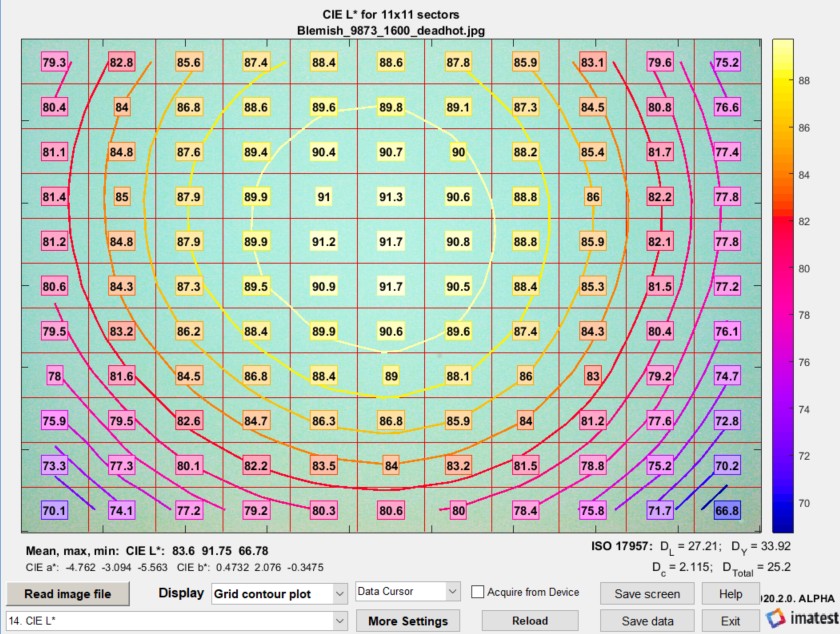
CSV and JSON output files
The CSV and JSON output files contain a summary of results. Most have obvious meanings.
- Image pixels contains the width, height, and total size in pixels. Hot and Dead pixels show the total count and the fraction (divided to total pixels)
- The x and y coordinates of the hot and dead pixels are listed. The maximum is 100. Coordinates are in pixels from the top-left.
They also contain EXIF data, which is image metadata that contains important camera, lens, and exposure settings. To read detailed EXIF data from all image file formats, we recommend downloading, installing, and selecting Phil Harvey’s ExifTool, as described here.
Contact Imatest if you need additional .CSV output. JSON output files contain results similar to the CSV files, but can be read into external programs with a single line of code. Contents are largely self-explanatory. Contact us if you have questions or suggestions.
Saving results
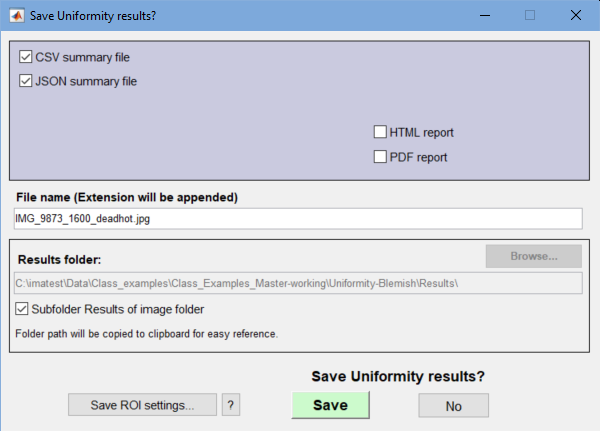 When you press the dialog box shown on the right is opened. It allows you to select which results to save (CSV and/or JSON files) where to save it. The default is subdirectory Results in the data file directory. You can change to another directory the results. CSV and JSON data are saved in files whose names consist of a root file name with a suffix for plot type and channel (R, G, B, or Y) and extension.
Example: IMG_9875_ISO1600_RGB_f-stop_ctrG.png. The root file name defaults to the image file name, but can be changed using the Results root file name box. Be sure to press enter. After you click on or , the Imatest main window reappears.
Links
Vignetting by Paul van Walree, who has excellent descriptions of several of the lens (Seidel) aberrations and other causes of optical degradation.