

The download and first-time installation may take several minutes each. The first time you install Imatest you should be sure Matlab Libraries is checked. When installation is complete the Matlab Runtime Library (MCR) will be installed and Imatest programs will be in the following locations.
| Imatest programs |
64-bit Win64 |
%ProgramFiles%\Imatest\version\edition where edition is Master, Image Sensor or IT and version is, for example: v2020.2 C:\Program Files\Imatest\version\edition (English installations) |
| Linux | /usr/local/Imatest/version/edition where edition is Master, Image Sensor or IT and version is, for example, v2020.2 | |
| macOS | /Applications/Imatest edition version.app |
If you try running Imatest before the MCR has been installed the following message may appear. You’ll need to reinstall with Matlab Libraries checked.
This application has failed to start because mclmcrrtnn.dll was not found.
nn = 98, depending on the version of the MATLAB Runtime.
Install Imatest
If you haven’t downloaded Imatest, go to the Imatest download page before proceeding.
| You must have administrator privileges on your computer during installation. If you have a strong firewall, you may need to disable it before you install Imatest for the first time. You can re-enable it when the installation is complete. This should not be necessary on subsequent installations. |
Windows
Open Windows Explorer and double-click on the Imatest installer file, Imatest-version.exe. (Version is the version number, e.g., 2020.2). The Change Log contains the update history.) The version is displayed in the welcome window. Follow the instructions in the installation wizard (mostly clicking Next >).
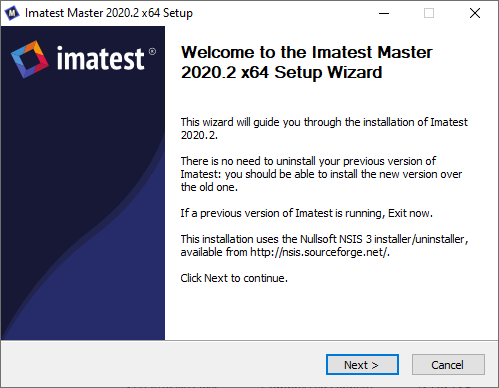
When you install Imatest you agree to the terms of the Imatest license, whose full text can be found here.
The first time you install Imatest on a computer, be sure Matlab libraries is checked. This box should not be checked for updates unless a new version of Imatest uses a new library.
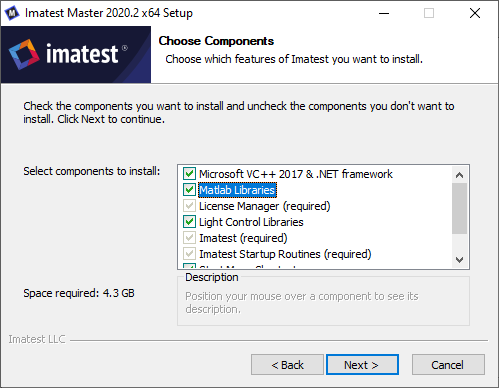
Choose Components window: Matlab Libraries should be checked
the first time Imatest is installed on a computer.
By running the installer from command line, you can optionally install silently. Call the installer exe from the command line with the parameter /S, for example:
cd C:\Users\MyName\Desktop
C:\Users\MyName\Desktop>imatest-2020.2.0.exe /S
Running on Windows
Imatest can be run by clicking the Imatest icon  on the Desktop, the Start menu, or in the Imatest installation folder (C:\Program files\Imatest\Master\v2020.2\ in English language installations). Instructions for running Imatest are located in Imatest instructions. Links to instructions for individual Imatest modules are located in the Imatest Documentation page.
When you first run Imatest, it will be in evaluation mode.
You can upgrade to full unrestricted version by purchasing and registering Imatest.
Linux
After downloading the Imatest installer, navigate to the folder in which it is saved. Right click on the Imatest-edition_version.tar.gz file and select Extract all. This command generates a Imatest-edition_version folder with the installer contents. Next open a terminal window either by pressing Ctrl+Alt+T, or click the Dash button and search for ‘terminal’. In the terminal window navigate to the folder with the installer. For example, if the installer for Imatest was downloaded to the desktop and extracted to a folder named ‘Imatest’, you would type
cd ~/Desktop/Imatest
Lastly, run the installer with
sudo ./install
Alternatively, there is a ‘silent’ install process that installs the MATLAB Runtime to the default location and does not need user intervention. The silent installation mode is called with
sudo ./install –silent
macOS
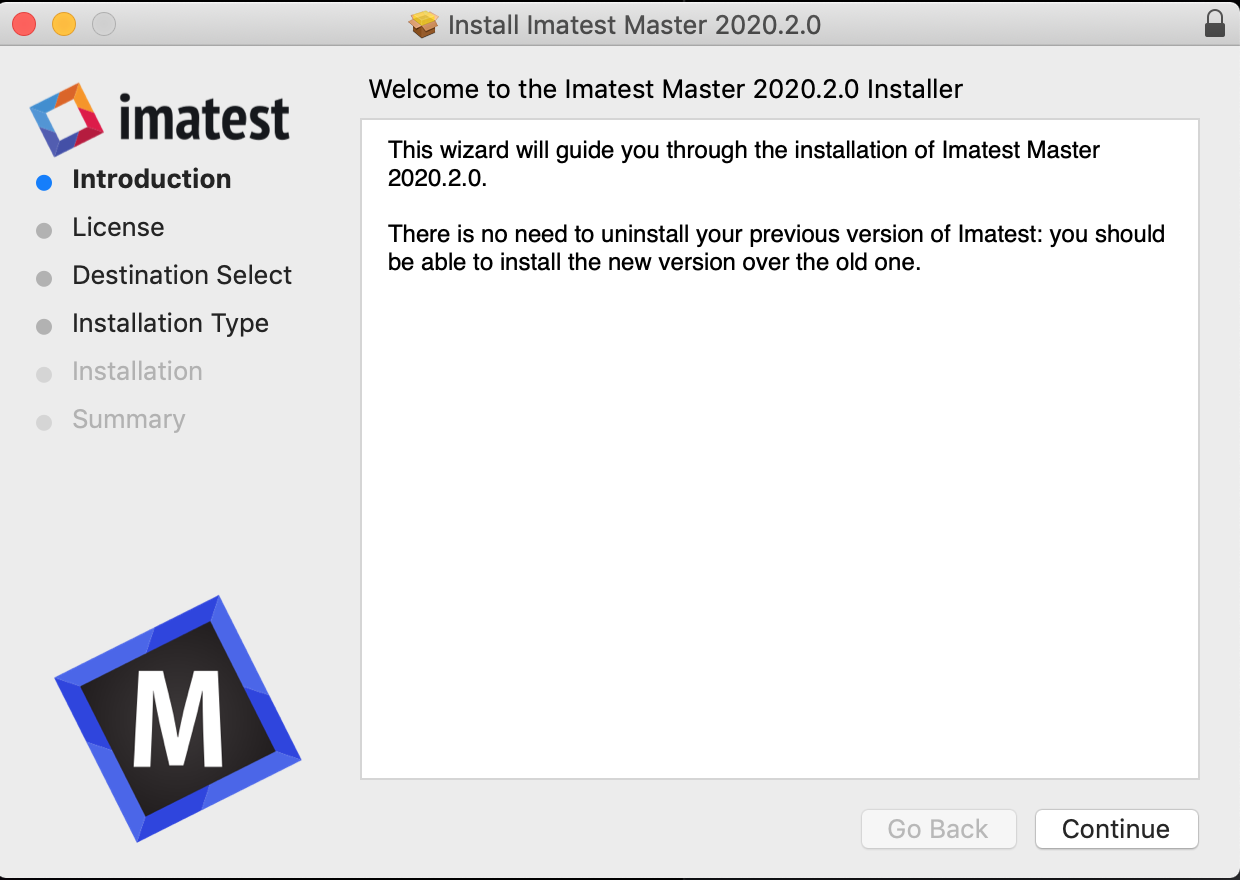
After downloading the Imatest file, navigate to the folder in which it is saved. Double click on the *.pkg installer file and step through the installer wizard by clicking Continue and then Install.
License Activation
You can install Imatest on as many computers as you like, but you can activate and use it on only one computer at a time. To move it between computers you’ll have to deactivate it on one and activate it on another. You can deactivate and activate by clicking Help, License Manager (Activate), and following the instructions. More details on Online Activation | Offline Activation | Online Deactivation | Offline Deactivation.
Enhanced EXIF data acquisition
EXIF data is image file metadata that contains camera and lens settings. Selected EXIF data (important values such as aperture, exposure time, ISO speed, and focal length) is displayed in several figures and saved in CSV and XML output files.The jhead.exe program included in the standard Imatest installation can only read limited EXIF data from JPEG files. Imatest’s EXIF acquisition capabilities can be greatly enhanced using Phil Harvey’s ExifTool, which must be downloaded and installed separately from Imatest:
- Go to the ExifTool home page and download the Windows standalone executable (a zip file). This file is not included in the Imatest installation because it is frequently updated.
- In Windows Explorer, double-click on the downloaded zip file.
- Copy the contents ( exiftool(-k).exe ) to the appropriate installation folder. To find the location in, click Options II (lower-right of Imatest main window), then click Open utilities folder to the right of EXIF data acquisition. The location for Imatest Master 2020.2 is C:\ProgramData\Imatest\mcr_cache\2020.2\Master\mcrCache9.8\imates0\imatest\depends\RTDepends.
- Rename exiftool(-k).exe to exiftool.exe.
- Make the appropriate selection in the Exif Data Acquisition area of Options & Settings II. More details here.
Purchase Imatest
You may purchase Imatest at any time from Imatest’s online store. You will be entitled to updates for one year from the date of purchase. After one year you will need to renew your subscription to install new upgrades.
| Click here to go to the Imatest Store purchase page. |
You can also click on Help, Imatest Store in the Imatest main window. Prior to 3.7 you could click on the Purchase button in the Imatest main window.
After you purchase Imatest you’ll receive an e-mail confirmation of your purchase. This may take a few minutes. If you don’t receive the email within about fifteen minutes, contact us. A second email with activation instructions will be sent within a few hours (up to a day for Studio). You may register Imatest as soon as you receive this e-mail.
Files
When the installation is complete the Imatest folder should contain the following folders and files.
The default installation folder for Imatest is C:\Program files\Imatest\Master. (It may differ in non-English installations.).
| samples (folder) | Contains several image files with sample data for testing the three Imatest modules. Includes several cropped JPEG files for testing SFR, indicated by _sfr in their names. Some others:
Canon_EOS10d_ColorCheck_lt_small.jpg — for testing Colorcheck. |
| images (folder) | Contains several image files used by Imatest. |
| bin (folder) | Contains the .fig files used in the graphic user interface (GUI), as well as Matlab library files. Includes FigureMenuBar.fig and FigureToolBar.fig: library files missing from Imatest-lib.exe. |
 Imatest Imatest |
(full name Imatest.lnk) The standard icon for running Imatest. Runs run_imatest.bat, which sets the path, then runs imatest.exe. Copied to Windows Start Menu and Desktop. |
| Imatest Diagnostics |
(full name Imatest Diagnostics.lnk) Runs Imatest in diagnostic mode. Doesn’t close when Imatest terminates. This allows error messages to be viewed. Runs run_diagnostics.bat, which sets the path, then runs imatest.exe. |
| jhead.exe | DOS application for reading EXIF data (digital camera information). |
| dcraw.exe dcrawMS.exe |
Dave Coffin’s dcraw RAW conversion programs. dcrawMS.exe works with Windows Vista/7. |
| imatest.exe | Imatest executable program. |
| run_imatest.bat run_diagnostics.bat |
Batch files that set the Windows Path and run Imatest.exe. run_diagnostics.bat is used for diagnostic mode: extra results are displayed and the DOS window remains open if Imatest terminates with an error. |
| License.txt | The Imatest End User License Agreement (EULA) |
The Imatest License
The Imatest Master and Image Sensor license allows users to install the software on many computers, but to activate and use it on only one computer at a time. It can easily be deactivated on one computer and activated on another. The Imatest Studio license allows the user to install and register the software on only one computer at a time.
License holders are encouraged to publish test results in printed publications, websites, and discussion forums, provided they include links to www.imatest.com. You may not use Imatest for advertising or product promotion without explicit permission from Imatest LLC. Contact us if you have questions. The full text of the license can be found here.